
This is the walkthrough for making your first zone in the app. What a zone is, and whether you need one at all, is covered in Charging different prices by postcode — short version: if one price table for the whole country suits you, stop here, Everywhere else already covers every Australian address.
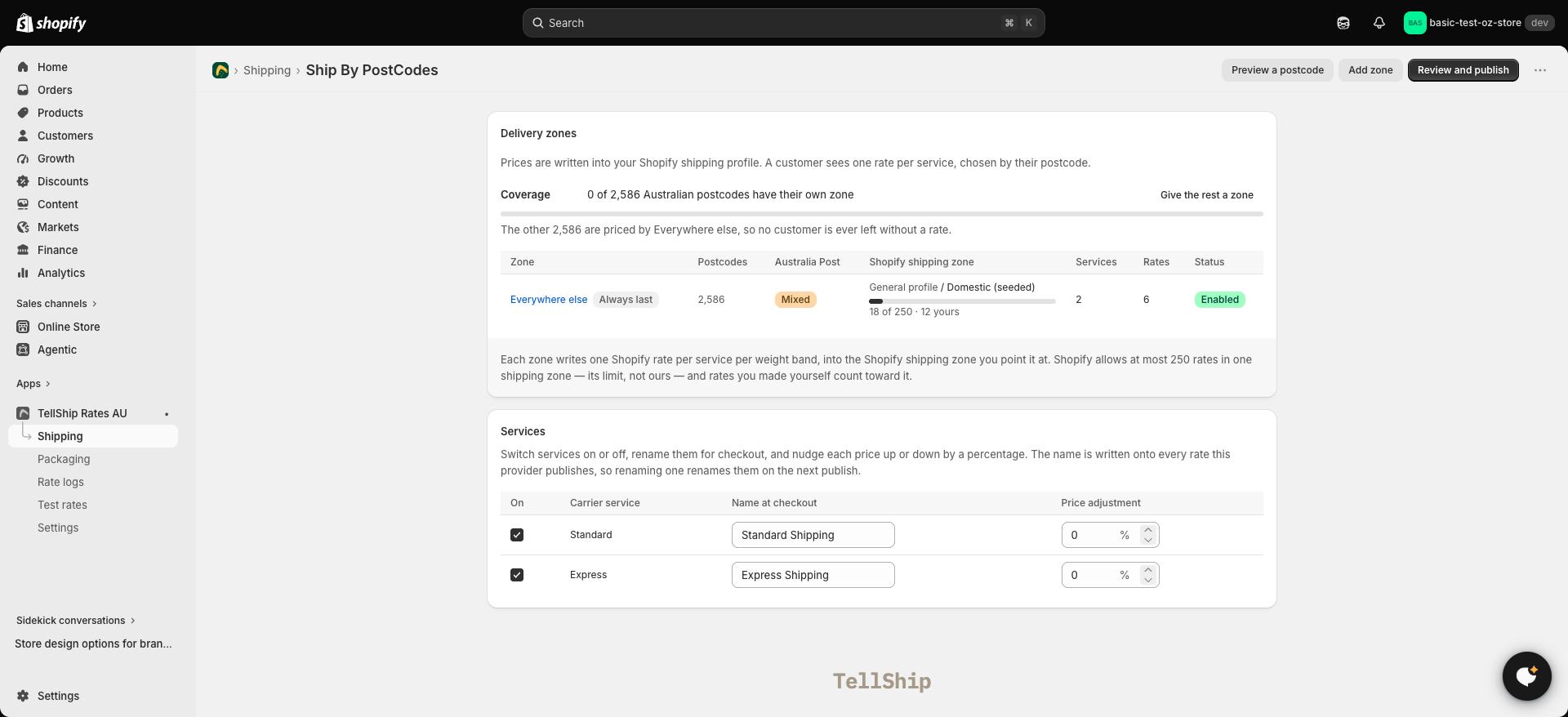
Step 1 — Open the zones screen
Shipping → Ship By PostCodes → Configure rates. Every zone you have is listed here, with Everywhere else always at the bottom.
Step 2 — Add the zone
Press Add zone. Name it after the area a customer would recognise — "Melbourne metro", "Perth and surrounds" — because this name is for you, not them; customers only ever see prices.
Step 3 — Tell it which postcodes
Give the zone its postcodes, any mix of:
- Ranges —
3000-3207, both ends included. A zone can hold several. - Single postcodes — the odd one out a range would overreach for.
- Exclusions — postcodes carved back out of a range.
The screen keeps count as you type — "2 ranges, nothing excluded" — so you can see what the zone claims before you save. The detail of how matching works is in Postcodes, ranges and exclusions.
Step 4 — Price it
Saving the zone gives it an empty price table: one row per weight band, one column per service. Type the prices, or press Fill from Australia Post and the empty rows are priced from your warehouse to that zone — see Filling prices from Australia Post.
Step 5 — Publish
The zone and its prices are saved, not live. Customers feel nothing until you publish — see Publishing your rates to checkout.
Check it worked
Run one quote on Test rates with a postcode inside the new zone. The right zone's price coming back is your proof — faster than a test order, and no customer involved.