
Five steps, in the order they matter. Most stores are done inside an hour.
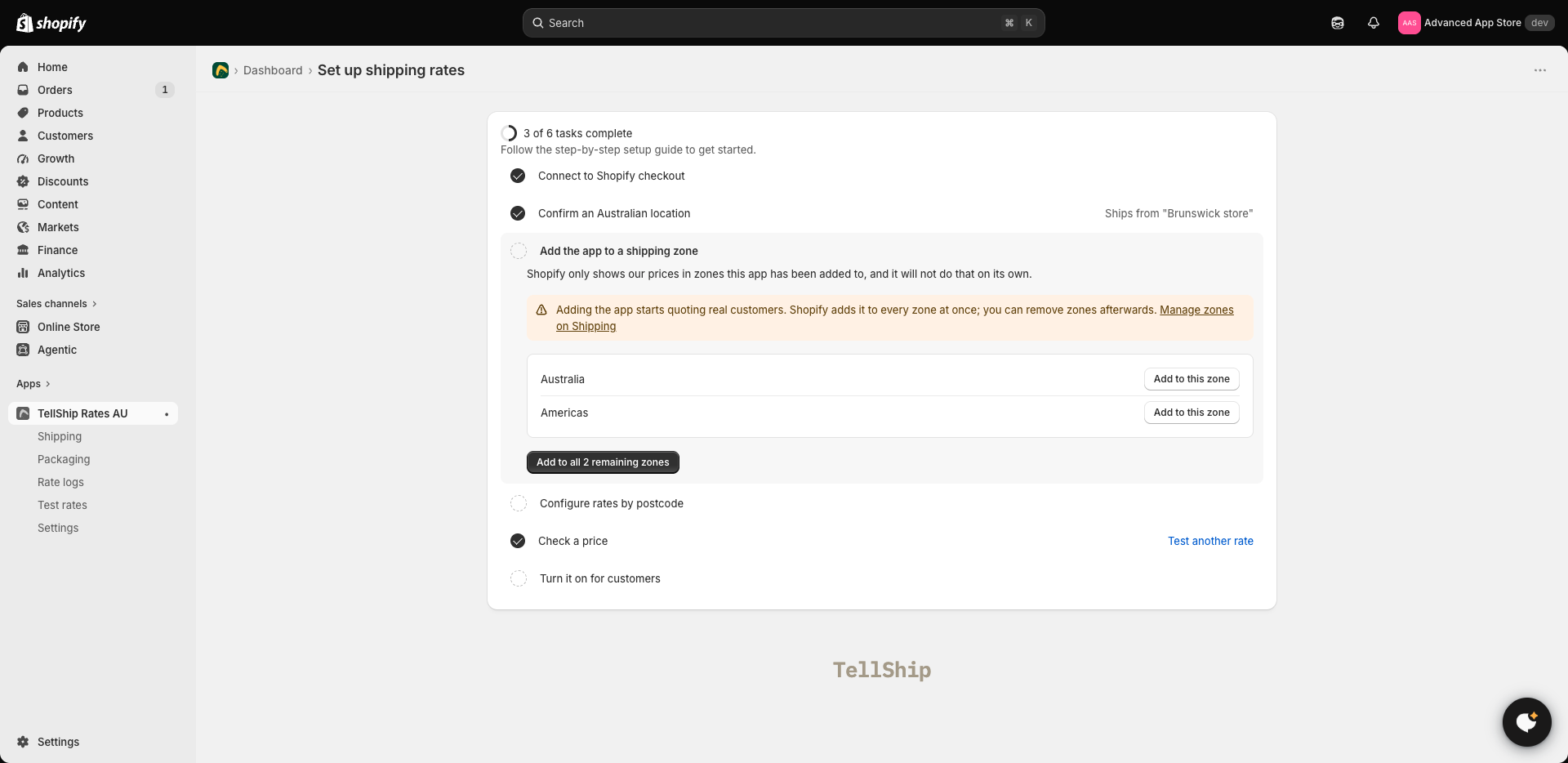
1. Start on the free trial
Installing starts a 14-day free trial with everything on, so there is nothing to choose before you begin. Before it ends, pick a plan in Settings to keep editing and publishing your zones. Rates you have already published stay at checkout either way.
2. Put weights on your products
Prices come from weight, so a product with no weight is quoted as if it weighed nothing — which is how a $2 quote for a 4 kg parcel happens. Product sizes are optional; weights are not. See Product weights and sizes.
3. Create your zones
Open Shipping → Ship By PostCodes → Configure rates. A zone is a part of Australia that gets its own prices — Melbourne metro, Perth and surrounds. If one price table for the whole country suits you, skip this step: the prices under Everywhere else already cover every Australian address. See Creating a delivery zone.
4. Price the zones
Each zone has a small price table — one row per weight band, one column per service. Type the prices, or press Fill from Australia Post and every empty row is priced for you — see Filling prices from Australia Post.
5. Publish, then test
Prices you save do not reach customers until you publish them — see Publishing your rates to checkout. Then run one quote on Test rates to see exactly what a customer would — see Testing your rates.